
Published article
How to Turn Off Smart Lock Access Safely
Learn how to remove smart lock users, disable app access, and handle power or connectivity issues without locking yourself out or weakening door security.
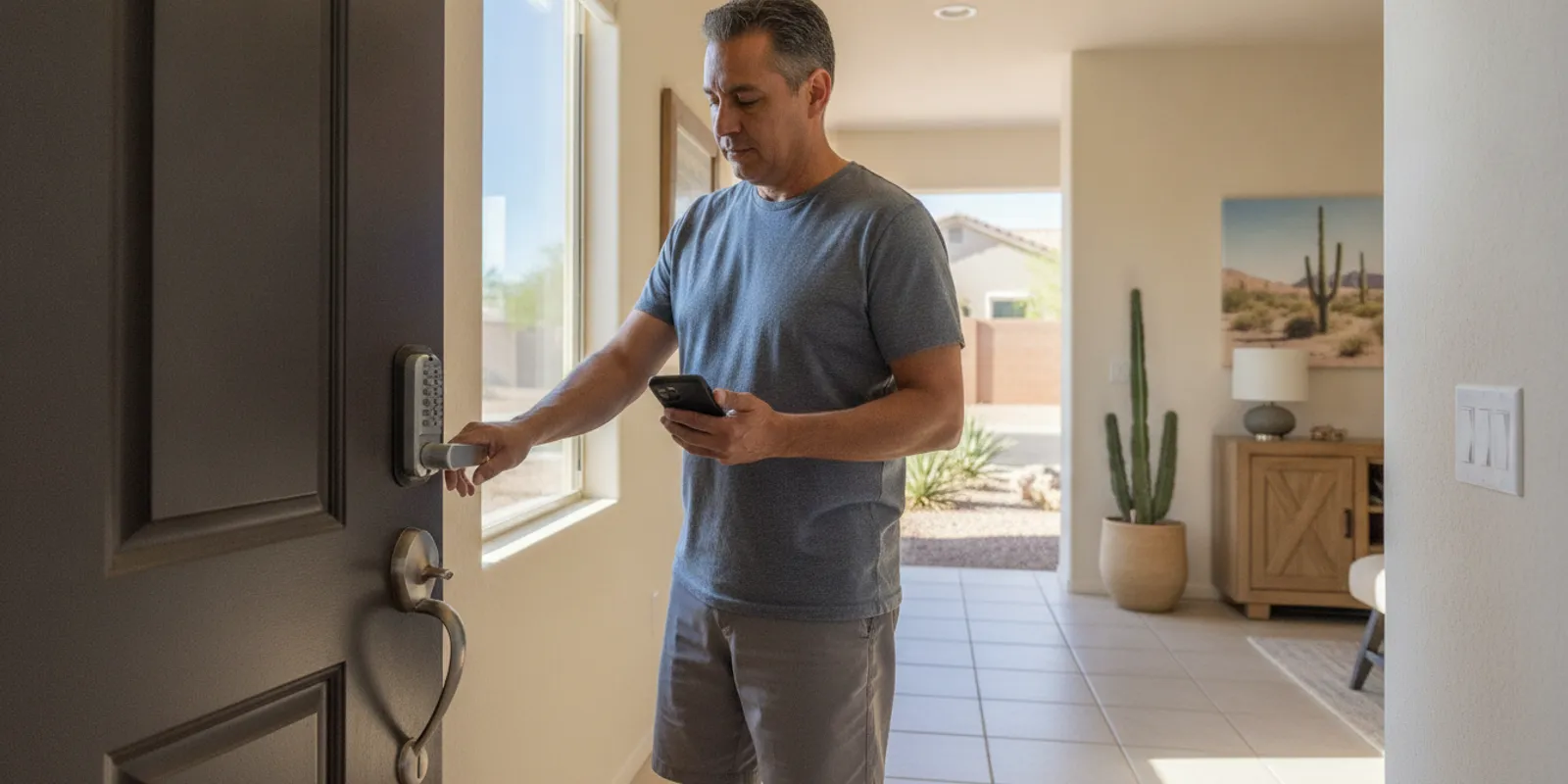
If you are figuring out how to turn off smart lock access, first decide what you need to stop: a person's entry code, remote app control, an automation, or the electronic part of the lock itself. Those are different actions, and shutting down the wrong feature can leave you without a working key or a secure way to enter. Start with the lock's app or owner instructions, keep a physical backup available, and use the steps below to make a controlled change.
Ask The LOCK Shop about a smart lock concern
What does “turn off” mean for a smart lock?
Smart locks combine a physical locking mechanism with electronic features. Depending on the model, those features may include keypad codes, phone app control, remote access, scheduled locking, or connections to a home automation system. The mechanical deadbolt may still work with a key or thumb turn even when some electronic features are unavailable.
Before changing settings, name the feature you want to stop. For example, if a visitor no longer needs access, remove or disable that person's code. If you do not want the lock responding to remote commands, review the app's connection and sharing settings. If the keypad is malfunctioning, a full reset or removal from the app may be unnecessary and could make the problem harder to diagnose.
- Stop one person's access: remove, deactivate, or change that person's code or shared app access.
- Stop remote control: review the lock's network, hub, app, and account permissions.
- Stop a schedule or automation: turn off the relevant rule in the lock app or connected home system.
- Stop electronic operation: follow the maker's directions for the specific lock. This may involve batteries or a service procedure, but does not necessarily disable the mechanical lock.
Exact menus and capabilities differ by model. If the lock is part of a wider digital door lock setup, check which device or account controls each feature before making changes.
What should you check before changing the settings?
A few minutes of preparation can prevent a lockout or an avoidable reset. Confirm that you can still enter the home in a way that does not depend on the feature you plan to disable. If your lock accepts a key, locate it and check that it works. If entry normally relies on a keypad, make sure you know how to restore or create a working code before removing the only one you use.
- Identify the make and model. Look at the inside assembly, packaging, purchase records, or the lock app. Use the owner's manual or official app instructions for that exact model.
- Check who controls the lock. Determine whether you are signed in as the owner or administrator, and whether another household member or property manager manages codes.
- Keep another entry method ready. Test a physical key, an authorized second code, or another approved route before changing access.
- Check battery and door condition. A low battery, misaligned door, or stiff bolt can look like an app problem. Do not assume that deleting the lock from an app will fix a mechanical issue.
- Tell affected users when appropriate. If a household member or authorized caretaker relies on a code, coordinate the change so they are not unexpectedly unable to enter.
For a home with multiple exterior doors, consider what will remain secured while you work. Keep the door in view, avoid leaving it propped open, and confirm the bolt can extend and retract normally once the change is complete.
How do you turn off a person's code or app access?
If the goal is to stop a particular person from entering, focus on that person's credentials rather than switching off the entire lock. Most systems place user and code controls in an app, a keypad programming mode, or both. The labels vary, but may refer to users, access codes, guests, sharing, or permissions.
- Open the lock's app or the maker's documented programming method, and sign in with an account authorized to manage access.
- Find the specific user, code, or shared invitation you intend to remove. Check carefully if several people have similar names or if a code is used for more than one purpose.
- Choose the option to disable, delete, or revoke that credential. Some models allow a code to be paused; others require deletion and later re-creation.
- Save the change and wait for confirmation. If the lock operates through a hub or network connection, the change may not reach the lock until it reconnects.
- Test the change safely. Confirm that an authorized active method still works, then verify that the removed code or invitation no longer grants entry, following the manufacturer's instructions.
Do not share a master or administrator credential as a shortcut. A separate user code makes it easier to grant and remove access without handing over control of settings. If you cannot identify which code belongs to whom, document the active users first, then consider replacing unknown codes rather than guessing.
When access changes are part of a move, a lost phone, or a change in household arrangements, think about every way the person could still enter. That can include a physical key, a second keypad code, app sharing, a connected home platform, or a spare credential kept elsewhere. Removing one app invitation alone may not remove a separate PIN.
How do you stop remote access or an automation?
Remote operation and automatic actions can be managed separately from keypad entry. If you only want to stop the lock from responding to remote commands, look for connection settings in the lock app or in the hub or home automation system that links to it. An app may have separate controls for account sharing, network connection, notifications, and device integrations.
Use a careful sequence:
- Review the list of people and services with access to the lock's account.
- Remove unneeded app sharing or third-party integrations using their documented controls.
- Review schedules, routines, and geofence-based actions, if the model offers them. Disable only the rule you intend to stop.
- If you disconnect the lock from a hub or network, first check which functions will stop working and how you will operate the lock locally.
- After saving changes, test the remaining entry methods and confirm the door still locks and unlocks as expected.
Turning off Wi-Fi, Bluetooth, or a hub connection may limit remote control without disabling keypad or keyed operation. That behavior varies by lock. Do not rely on assumptions: check the product instructions and test the result while you are inside, with a reliable way to leave and re-enter.
If an old phone was lost or an account may be accessible to someone else, secure the account as well as the lock. Follow the account provider's process for changing a password, ending active sessions, or reviewing shared users. If the lock app is controlled by a landlord, property manager, or another household owner, contact that administrator rather than attempting to bypass their setup.
Should you remove the batteries or factory-reset the lock?
Removing batteries can stop or interrupt electronic features on some models, but it is not a universal way to turn a smart lock off. It may leave a mechanical key or thumb turn usable, or it may prevent keypad entry until power is restored. Some locks have backup power provisions; some do not. Check the manual before removing batteries, and make sure you know how to regain access afterward.
A factory reset is more disruptive. It may erase user codes, app pairing, schedules, and settings. It may also require an administrator credential or a setup sequence performed at the lock. A reset is usually not the first choice when you only need to remove one person's access or stop a schedule.
| Action | What it may change | Consider before proceeding |
|---|---|---|
| Remove one user or code | That credential's access, if the lock receives the change | Confirm the correct user and keep an authorized entry method active. |
| Disable an automation | A scheduled or connected action | Check whether another app or hub also controls the same routine. |
| Disconnect network or hub access | Remote features and connected integrations | Find out which local functions remain available on your model. |
| Remove batteries | Electronic operation while power is absent | Confirm the lock's backup and mechanical entry methods first. |
| Factory reset | Potentially all saved users, pairing, and configuration | Use only the model-specific reset instructions and plan to set it up again. |
Choose the smallest change that achieves your goal. If you are preparing to replace the lock, moving out, or returning a rental, check who owns the device and who is responsible for restoring access. Keep the current setup documented until the new arrangement has been tested.
For example, if a guest's code should stop working after a visit, remove that code instead of wiping every setting. If you are disabling an automatic lock schedule because the door keeps locking at the wrong time, turn off or revise the schedule and leave ordinary keypad and key access intact. If you are replacing the lock, plan for the transition: identify who can administer the old and new systems, keep the old lock's instructions, and avoid removing its last reliable entry method until the replacement is installed and tested.
When the reason is a lost phone, consider both the device and the lock account. A phone may have a saved app session even if the lock itself is still secure, and another household member may have separate app access. Use the account provider's security tools and check the lock's authorized users. These steps address the specific access path instead of making a broad change that could disrupt the whole household.
What if the smart lock will not turn off or respond?
First, distinguish a settings problem from a mechanical one. If the app says the lock is offline but the keypad or key still works, the problem may be connectivity rather than the bolt. If the motor runs but the bolt does not move smoothly, the door or hardware may be binding. A forced reset will not correct a misaligned strike or damaged mechanism.
- Check the batteries and replace them only as directed by the manufacturer.
- Confirm the door is fully closed and the bolt moves freely when the door is open, if the manual recommends this check.
- Check the app's status and connection instructions. Some changes require the lock to reconnect before they take effect.
- Use a working physical key or another authorized method rather than repeatedly forcing the keypad or thumb turn.
- Record any warning lights, sounds, error messages, or recent changes. This can help identify whether the issue is power, configuration, or hardware.
Do not pry the lock, force a stuck bolt, or take apart an unfamiliar assembly. If the door will not secure, you are locked out, or the lock remains unreliable after the documented checks, seek qualified help. The LOCK Shop's smart lock service path can help homeowners review lock repair, replacement, or installation options. The company is family-owned and operated in Mesa and uses a mobile service fleet.
How can you avoid locking yourself out?
Make access changes in a way that leaves you with a tested backup. Keep a working key in a secure, accessible place if your model accepts one. Avoid storing the only entry code in the phone or account you are about to disable. If another person is authorized to manage the home, agree on a backup plan and make sure it does not depend on a single device.
After changing a setting, test the result with the door open before closing it. Verify that the desired code or app access is removed, and that the methods you still intend to use are available. Then close the door and test the lock from the normal operating position. This helps reveal alignment issues that might not show up with the door open.
If you are comparing a replacement or upgrade, think through how the people in the household actually use the entry. A useful smart lock front door guide can help frame questions about everyday access, while the company's residential lock services page outlines the kinds of home lock support available. The right setup is one you can operate reliably and manage as users or needs change.
When should you ask a locksmith for help?
Contact a locksmith if the lock is physically stuck, the door will not secure, a key or keypad fails despite following the correct instructions, or a reset has left you unable to manage access. Professional help may also be useful when the lock is part of a door that needs adjustment, when you do not know who controls its account, or when you are unsure whether to repair or replace the hardware.
Before requesting service, note the lock's make and model if you can, what you were trying to disable, the exact error or behavior, and whether a key or alternate code still works. Do not send passwords, master codes, or private credentials in a message. Share only the details needed to explain the issue, and follow the technician's instructions for secure access.
For a service question, review The LOCK Shop FAQs or request service. You can also use the contact page to discuss the situation and ask about next steps.
Frequently asked questions
Can I turn off a smart lock but still use a key?
That depends on the model and the change you make. Some locks retain keyed mechanical operation when electronic features are unavailable; others have different designs. Check the manufacturer's instructions and test your key before relying on it.
Does removing the app turn off the lock?
Not necessarily. Removing an app from a phone may not remove the lock's saved codes, disconnect other users, or change its local operation. Use the documented account or lock settings to remove access and confirm the change on the device.
Will a factory reset remove every person's access?
A reset may clear saved users or codes, but behavior varies by model and account setup. It can also erase pairing and other settings. Read the exact reset instructions and make sure you can set up and test the lock again before starting.
What should I do if I cannot get into the lock app?
Use a working physical key or another authorized entry method if available, then follow the app provider's account recovery process. If the door is unsecured, the lock is malfunctioning, or you have no safe entry method, contact a locksmith for help.
Talk with The LOCK Shop about your smart lock
Turning off smart lock access is safest when you change only the feature you mean to change, preserve a reliable way to enter, and verify the result before relying on it. If the settings or hardware do not behave as expected, pause and get help rather than forcing the lock.