
Published article
Kwikset Smart Lock. Setup, Access, and Service
Kwikset smart lock setup and care for Mesa homeowners. Learn access options and maintenance checks. See locksmith warning signs before you need help.
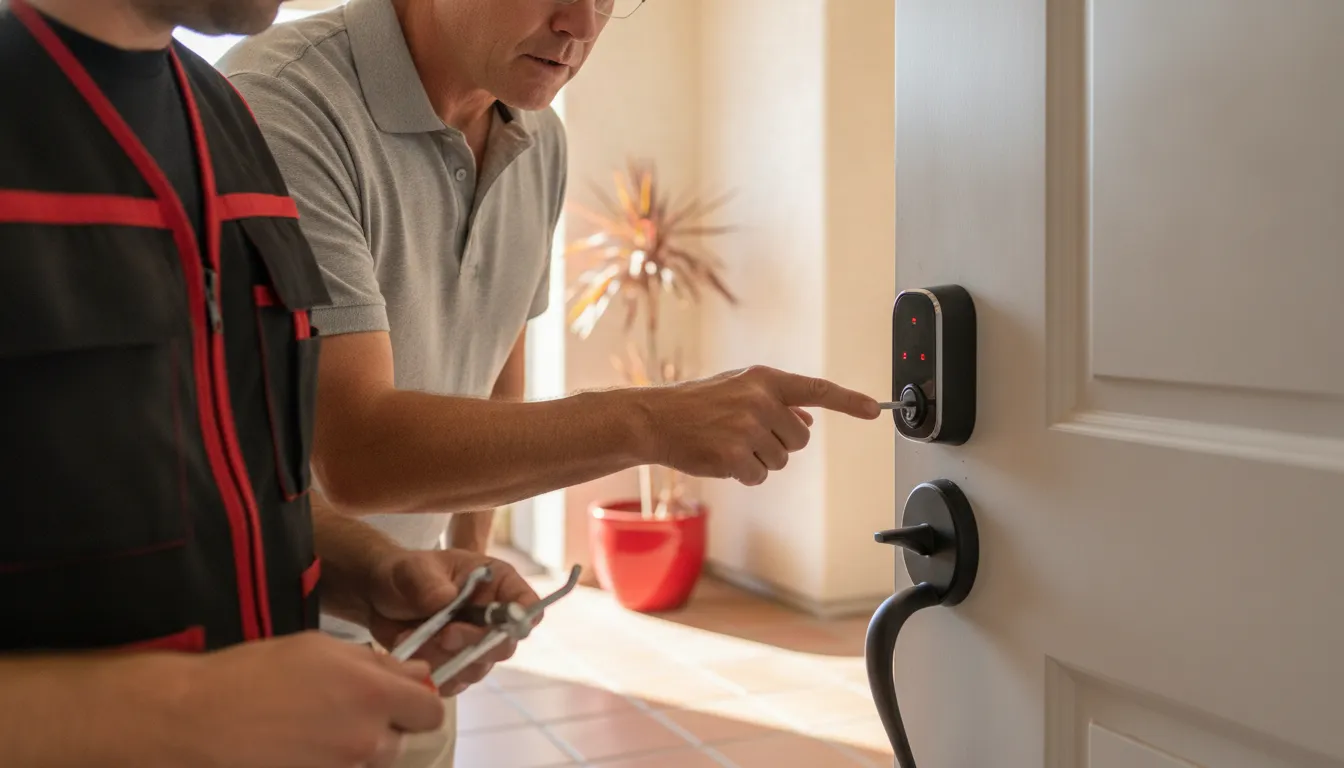
A smart lock can make everyday entry simpler, but the details depend on the lock installed on your door. Keypad, touchscreen, physical-key, app, and smart-home access are not interchangeable features across the Kwikset lineup. So the model number and its manual should guide every setup or troubleshooting decision.
A kwikset smart lock may provide keyless entry, personalized access control, and, on supported models, remote locking or unlocking. Kwikset also offers model-specific how-to guides and in-app instructions, but the available codes, connectivity, keyway, batteries, and integrations vary by product. See the manufacturer's smart-lock range and confirm your exact model before changing settings.
This guide focuses on ownership after purchase: what the lock can do, how to set it up without guessing. Which entry methods to keep available, and how to recognize problems that call for professional help. Start with the features and limits that distinguish one Kwikset model from another.
What Is a Kwikset Smart Lock and What Can It Do?
A Kwikset smart lock is an electronic residential lock designed to give you more than one way to manage entry. Depending on the model, it may replace or supplement a traditional deadbolt with electronic access. Such as a keypad, touchscreen, or remote control through a compatible app or connected home system. Kwikset groups these products around keyless entry, access control, remote locking and unlocking, and home management. You can review the manufacturer's current Kwikset smart-lock lineup before narrowing your choices.
Common formats for a Kwikset smart lock
The exterior design and access method vary across the range. Some models use numbered keypads, while others use a touchscreen. Electronic deadbolts are another common format, and certain products support remote access. A compatible lock may let you use a physical key as a backup. Enter a user code, operate the lock from an app, or connect it with a home automation platform. Those options are not universal, so treat them as examples rather than a feature list for every Kwikset product.
Access for household members and visitors
Supported Kwikset products can provide personalized access codes, and Kwikset describes scheduled codes for people such as contractors, housekeepers, or babysitters. Some models also provide lock history, which can help a homeowner review activity. Remote locking and unlocking may be available on applicable products. Before relying on any of these functions, confirm that your exact model, app, hub, network, and subscription requirements support them.
Why the exact model matters
A smart lock is still a mechanical installation as well as an electronic device. Door thickness, deadbolt alignment, cylinder style, battery arrangement, keypad or touchscreen behavior, and connected-home compatibility can differ by product. Kwikset's support resources include model-specific guidance for products such as Powerbolt 2 and SmartCode 913. A general tutorial should not replace the installation guide for your lock.
For homeowners, the practical starting point is to identify the model number and read its official documentation before buying accessories, changing settings, or planning an installation. This Kwikset-specific overview is different from a general smart-lock comparison: the right choice depends on the door, the desired access method, and the exact features documented for the product you are considering.
How Do You Set Up and Program a Kwikset Smart Lock?
A smooth installation starts with the exact model, not a generic programming sequence. Kwikset support provides separate guidance for products such as Powerbolt 2, SmartCode 913, and Halo. Identify the model and keep its installation guide nearby before removing the existing lock. The guide and the Kwikset how-to resources should control the button presses, code limits, app, and pairing steps for your unit.
- Confirm the door and lock fit. Check that the deadbolt moves freely with the door open and that the existing bore, backset, strike, and interior space match the instructions. Do not force the motor or keypad to compensate for a binding or misaligned door. Resolve the mechanical fit first, because electronic programming cannot correct a bolt that does not travel cleanly.
- Install the hardware and batteries as directed. Follow the diagrams for the exterior keypad, interior assembly, cable routing, and battery pack. Use the battery type and orientation specified for your model. Leave the door open during initial setup so you can observe the bolt and avoid locking yourself out while testing.
- Complete the model-specific physical setup. Some locks use a manual handing or door-direction step, while others have different calibration or initialization requirements. Perform only the sequence in your manual. Avoid applying a universal reset procedure copied from another Kwikset model, since reset behavior can erase codes or change the lock's setup state.
- Pair the lock with its supported app or system. If your model uses the Kwikset App, install the current app and follow its in-app prompts for account setup and pairing. A keypad-only model may not use the same app or connectivity method. Likewise, home-security and smart-home integration depend on the exact product and compatible platform, so confirm those requirements before attempting to connect.
- Add and protect user codes. Use the installation guide's code instructions rather than guessing the button sequence. Kwikset support specifically directs owners to the relevant guide for adding user codes. Record codes securely, avoid sharing an administrative code unnecessarily, and test each approved code with the door open. Three consecutive failed attempts can lock a keypad or touchscreen for 60 seconds, according to Kwikset support.
- Test every intended access method. With the door open, test the interior thumbturn, physical key if supplied, keypad code, and app or integration only when your model supports them. Then close the door and confirm that the bolt extends fully into the strike without rubbing. Test locking and unlocking several times before relying on the lock for daily entry.
- Handle Wi-Fi requirements narrowly. Applicable Halo models have their own network requirements. Kwikset says Halo Select setup requires a home network broadcasting at 2.4 GHz and not hidden, with adequate signal at the lock. If a Halo Select lock cannot detect a network, its support guidance includes removing and replacing the battery pack before resuming setup. Do not apply these Wi-Fi requirements to every Kwikset smart lock.
If the lock binds, will not calibrate, or repeatedly fails after the manual steps, stop before forcing the hardware or repeating resets. A qualified locksmith can check the door alignment, installation, and model compatibility together.
Which Ways Can You Unlock a Kwikset Smart Lock?
A Kwikset smart lock may give you more than one way to enter, but the available options depend on the exact model, its installed hardware, and its connectivity. Kwikset's product range includes keypads, touchscreens, and locks that support remote access, so do not assume that one model's app, keyway, or smart-home features apply to another. Check the product page and installation guide for your lock before setting up an access method.
| Access method | How it may work | Best use | Important limitation |
|---|---|---|---|
| Physical key | Some models retain a keyed cylinder for manual entry. | A dependable backup when batteries, codes, or connectivity are unavailable. | Not every model uses the same keyway or includes a physical key option. Confirm yours before relying on it. |
| Keypad or touchscreen | Enter an approved user code on the exterior keypad or touchscreen. | Daily entry for household members, guests, contractors, or caregivers. | Code features and lockout behavior vary. Kwikset says three consecutive failed attempts can trigger a 60-second keypad or touchscreen lockout. |
| Mobile app | Use the supported app for applicable locks and connected services. | Managing access or remotely locking and unlocking when the model and connection support it. | Remote functions require the right model, account setup, and working connectivity. They are not universal across the product line. |
| Smart-home integration | Connect a compatible lock to a supported home-management or security platform. | Coordinating the lock with an existing smart-home routine or system. | Compatibility must be verified for the exact lock, platform, hub, and configuration. Do not assume that a general smart-home feature will work with your setup. |
For example, a family might use a keypad code for everyday arrivals while keeping the physical key with a trusted adult. A homeowner who hires a contractor could use a model-supported temporary or scheduled code instead of sharing a permanent one. Kwikset describes personalized codes and scheduled access for supported products, but the specific limits and programming steps belong to the relevant manual and app instructions.
Plan for the access method you will use when something goes wrong. Keep the correct physical key available if your lock has a key cylinder, record the model information, and make sure household members know the approved backup procedure. If the lock is connected, consider what happens during a dead battery or lost network connection rather than treating remote access as your only option. Kwikset's official smart-lock product information and support resources can help you confirm which entry methods your specific model supports.
How Do You Maintain and Troubleshoot a Kwikset Smart Lock?
Start with the basics, then move to model-specific troubleshooting. Kwikset smart locks do not all use the same battery pack, keypad, app, or programming sequence, so keep the installation guide for your exact model nearby. Avoid treating a factory reset as a universal fix. A reset can remove codes, network settings, or other programming, and the correct procedure belongs in the relevant manual.
Why is my Kwikset smart lock not locking?
Check whether the door closes fully and whether the deadbolt moves freely when the door is open. If the bolt works with the door open but binds when the door is closed. The likely issue is alignment between the bolt and the strike plate, not the app. Look for pressure from weatherstripping, a sagging door, loose hinge screws, or a strike opening that no longer lines up. Do not force the motor or thumb turn. Continued binding can damage the lock or door hardware.
Next, check the battery condition and installation according to the model manual. A low battery can affect electronic operation, but battery replacement is not the same as rekeying. If the lock remains difficult to operate mechanically after the battery check, stop cycling it and have the door and lock inspected.
What should you do when a code does not work?
Confirm that you are entering the correct user code and that the keypad or touchscreen is responding normally. Kwikset states that three consecutive failed attempts can trigger a 60-second keypad or touchscreen lockout. Wait for that period rather than continuing to guess. For forgotten or changed codes, use the installation guide for your exact lock. Kwikset support specifically directs users to model documentation for adding user codes, and the procedure is not interchangeable across every product.
How do you troubleshoot the app or Wi-Fi?
App and Wi-Fi troubleshooting applies only to models with those capabilities. For Halo models, Kwikset recommends checking the troubleshooting guidance, confirming adequate signal strength at the lock, and, for Halo Select setup, using a visible 2.4 GHz network. If a Halo lock cannot detect a network during setup, Kwikset documents removing and replacing the battery pack as a power-cycle step. Network reconfiguration for applicable models may be available in the Kwikset App under Lock Settings and Wi-Fi Settings. Follow the exact on-screen instructions rather than applying these steps to another model.
For privacy and security, NIST recommends researching the security features of smart-home devices and configuring secure access. Use strong, unique account credentials, enable available protections such as multifactor authentication, keep supported apps and firmware current, and disable remote features you do not use. See NIST smart-home security guidance for broader recommendations.
When does rekeying belong in maintenance?
Rekeying changes which physical key operates a compatible cylinder. It does not replace batteries, repair a misaligned door, restore Wi-Fi, or automatically recover a forgotten keypad code. The LOCK Shop generally recommends residential rekeying every 5 to 7 years or after moving into a home, depending on the situation. If the lock is damaged, repeatedly fails, binds, or leaves you without reliable access. A qualified locksmith can evaluate the hardware and verify ownership before recommending repair, rekeying, replacement, or programming support.
When Should You Call a Locksmith for a Kwikset Smart Lock?
A Kwikset smart lock can be convenient, but it still depends on correct fit, alignment, power, programming, and a working access plan. Professional help is appropriate when the problem is no longer a simple battery, code, or app check. Especially if continued testing could damage the lock or leave you unable to secure the home.
Call when the lock keeps failing or binds
One failed code or delayed app command does not necessarily mean the lock is defective. Follow the instructions for your exact model first. However, repeated failures, a bolt that binds, grinding or unusual resistance. Or a lock that works only when you push or pull the door are reasons to stop forcing it. The issue may be door sag, strike-plate alignment, mounting pressure, worn hardware, or a problem inside the lock. A locksmith can assess the door and hardware together instead of repeatedly resetting the electronics.
Kwikset notes that three consecutive failed code attempts can trigger a 60-second keypad or touchscreen lockout. If the lock remains unresponsive after the documented recovery steps, professional troubleshooting can help distinguish a temporary lockout from a power, programming, mechanical, or connectivity issue. Model-specific procedures matter, so do not assume that a reset or battery process for one Kwikset lock applies to another.
Get help for damaged, inaccessible, or complex installations
Call before attempting a DIY repair if the exterior keypad or touchscreen is damaged. The cylinder is misprogrammed, the interior assembly is loose, or the door cannot be opened normally. Emergency assistance should be based on authorized service and ownership verification, with safe, non-destructive entry methods prioritized whenever practical. Do not pry, drill, or bypass the lock based on a generic online technique.
Professional installation is also sensible when the new lock does not fit the existing bore, the deadbolt does not extend smoothly. The model requires programming or pairing, or you need to coordinate the lock with a broader home-security setup. Kwikset provides model-specific guides and support, but The LOCK Shop documents smart-lock installation and programming along with lock repair, replacement, rekeying, and residential security assessments. Its mobile vehicles carry diagnostic computers and replacement lock inventory for on-site service.
The LOCK Shop serves Mesa, the East Valley, and the Phoenix metropolitan area from its storefront at 1155 South Power Road #116 in Mesa. For planned installation or troubleshooting, use the residential lock installation service information or request smart-lock service. Free over-the-phone estimates are available. For an urgent lockout or security problem, call (480) 452-4505. Residential labor is backed by a documented 100% Lifetime Labor Guarantee.
Frequently Asked Questions
How do I reset my Kwikset smart lock?
Use the reset procedure in the manual for your exact model before removing codes or changing settings. A factory reset can erase programmed access information, and the steps differ among Kwikset locks. If the lock is installed incorrectly, binding, or inaccessible, stop before resetting and have the condition evaluated.
How do you program a Kwikset smart lock?
Start with the model-specific installation guide or the instructions in the Kwikset app, if your lock uses one. Confirm the deadbolt moves freely by hand, install the batteries as directed, and then follow the programming sequence for user codes, pairing, or network setup. Do not assume instructions for a SmartCode, Powerbolt, or Halo model apply to another lock.
How do I change the four-digit code on a Kwikset lock?
Use the programming button or app workflow specified for your model, then test the new code while the door is open. Keep a physical key or another supported access method available until you confirm the code works. Kwikset says detailed user-code instructions are provided in the relevant installation guide: Kwikset support.
Why is my Kwikset smart lock not locking?
Check whether the door, strike, or deadbolt is misaligned and whether the bolt moves smoothly without electronic assistance. Then check the batteries and model-specific app or network status. Avoid repeated code attempts, because Kwikset support says three consecutive failed attempts can trigger a 60-second keypad or touchscreen lockout: Kwikset support. Persistent binding, damage, or failed operation is a good reason to call a locksmith.
Contact us for Kwikset smart-lock help
When setup, programming, alignment, or troubleshooting becomes difficult, professional help can make the next step clearer and help protect the lock and door. The LOCK Shop can review your situation and discuss the appropriate service for your Kwikset smart lock. To get started, request smart-lock service with the details of your lock and the issue you are experiencing.